ShellMate
A PowerShell-based workstation onboarding toolkit that standardizes and automates repetitive device provisioning tasks for MSP technicians.
- Status
- Maintained
- Timeline
- Apr 2025 - May 2025
- Technologies
- PowerShell
- Windows
- Winget
- PSWindowsUpdate
- Windows Registry
- AppX / MSI
The problem
Provisioning a new workstation required technicians to repeatedly perform the same series of configuration tasks by hand, including system settings, software installation, bloatware removal, and Windows Updates. Although each task was individually straightforward, repeating the process across every deployment consumed technician time and created opportunities for steps to be missed or completed inconsistently. The onboarding process needed a faster, more repeatable workflow that could be used consistently across the technician team.
Approach
I built ShellMate as a modular PowerShell toolkit around the repetitive configuration tasks performed during workstation onboarding. Rather than maintain a collection of disconnected scripts or require technicians to execute each step manually, ShellMate exposes the workflow through a simple numbered console interface. Each onboarding task is implemented independently so technicians can run only the operation they need, while a complete setup option orchestrates the core functions sequentially for new-device provisioning. The toolkit handles system configuration, application deployment, default application associations, bloatware removal, time synchronization, power settings, and Windows Updates. The design prioritized repeatability, technician usability, and reducing opportunities for configuration steps to be missed during deployments.
Outcome
ShellMate evolved from a personal workflow improvement into the standard workstation onboarding tool used by the technician team. Since April 2025, it has been used in more than 700 device configurations and counting, replacing a collection of repetitive manual setup tasks with a consistent, guided workflow. Based on estimated manual execution times for the tasks ShellMate automates, each deployment avoids approximately 60–75 minutes of active technician work. Across the more than 700 device configurations completed so far, that represents an estimated 700–875 technician hours redirected away from repetitive setup work, with the total continuing to grow as ShellMate remains in use. Beyond the time savings, ShellMate standardized how workstations are prepared across the team, reduced opportunities for configuration steps to be missed, and made the onboarding process easier to execute consistently across technicians.
Building the Runtime
ShellMate initializes its own supporting directory structure when it starts. A config directory stores generated configuration files, while a logs directory stores execution transcripts from each run.
Every session creates a timestamped log containing the computer name:
$timestamp = Get-EasternTime | Get-Date -Format "yyyy-MM-dd HH-mm-ss"
$pcName = $env:COMPUTERNAME
$logPath = Join-Path $logFolder "$timestamp - $pcName - ShellMate Log.txt"

Start-Transcript -Path $logPath -Append
Before exposing any configuration options, ShellMate also verifies that PowerShell is running with administrator privileges. This is required because many of its functions modify system-wide settings, services, registry values, installed packages, and Windows Update configuration.
if (-not ([Security.Principal.WindowsPrincipal]
    [Security.Principal.WindowsIdentity]::GetCurrent()).IsInRole(
        [Security.Principal.WindowsBuiltInRole] "Administrator")) {

    Write-Host "This script must be run as Administrator. Exiting..." -ForegroundColor Red
    Read-Host "Press Enter to exit"
    exit
}
Modular Function Design
Rather than implement workstation provisioning as one long procedural script, I separated each task into its own PowerShell function.
The primary workflow is composed of:
Rename-PCSet-PowerSettingsSet-TimeZoneAndSyncClockInstall-CommonAppsSet-DefaultAppAssociationsRemove-BloatwareInstall-WindowsUpdates
Each function can be executed independently from the menu, but the same functions are also reused by the Complete Setup workflow.
To support both behaviors, the functions accept a suppressPostActionMenu parameter. When an operation is run individually, ShellMate returns the technician to a post-action menu. During Complete Setup, that behavior is suppressed so execution can continue directly into the next function.
The complete onboarding workflow is therefore intentionally straightforward:
Rename-PC -suppressPostActionMenu $true
Set-PowerSettings -suppressPostActionMenu $true
Set-TimeZoneAndSyncClock -suppressPostActionMenu $true
Install-CommonApps -suppressPostActionMenu $true
Set-DefaultAppAssociations -suppressPostActionMenu $true
Remove-Bloatware -suppressPostActionMenu $true
Install-WindowsUpdates -suppressPostActionMenu $true

Show-PostActionMenu
This keeps orchestration separate from the implementation of each task and avoids maintaining separate logic for individual operations and full workstation deployments.
Working Directly With Windows
ShellMate interacts with several native Windows management interfaces depending on the configuration being changed.
Power configuration is handled through powercfg. The active power scheme is detected first, then sleep, display, hard-disk idle, and power-button behavior are modified for both AC and battery operation.
$schemeInfo = powercfg -getactivescheme
$scheme_guid = $schemeInfo.Split()[3]

powercfg -change -standby-timeout-ac 0
powercfg -change -standby-timeout-dc 0

powercfg -change -monitor-timeout-ac 0
powercfg -change -monitor-timeout-dc 0

powercfg -setacvalueindex $scheme_guid SUB_DISK DISKIDLE 0
powercfg -setdcvalueindex $scheme_guid SUB_DISK DISKIDLE 0
Fast Startup requires a different mechanism, so ShellMate modifies the Windows Registry directly:
$regPath = "HKLM:\SYSTEM\CurrentControlSet\Control\Session Manager\Power"
$regName = "HiberbootEnabled"

Set-ItemProperty -Path $regPath -Name $regName -Value 0
Time synchronization similarly combines multiple Windows components. tzutil configures the time zone, while the Windows Time service and w32tm are reconfigured to synchronize against time.windows.com.
Using the underlying Windows interfaces directly allows ShellMate to automate configuration that would otherwise require navigating several separate areas of the Windows UI.
Application Deployment With Winget
The standard workstation application set is defined using Winget package IDs:
$appsToInstall = @(
    "Adobe.Acrobat.Reader.64-bit"
    "Google.Chrome"
    "Mozilla.Firefox"
    "VideoLAN.VLC"
    "7zip.7zip"
)
Each application is installed silently with package and source agreements automatically accepted:
winget install `
    --id $app `
    --silent `
    --accept-package-agreements `
    --accept-source-agreements
The installation loop also handles several real-world failure states instead of assuming every package installation will succeed immediately.
If an application is already installed, ShellMate skips it. If Windows Installer returns exit code 1618, indicating another installation is already in progress, ShellMate waits ten seconds and retries the package installation.
elseif ($LASTEXITCODE -eq 1618) {
    Write-Warning "$app install blocked by another installation, retrying in 10s"
    Start-Sleep -Seconds $retryDelaySeconds
}
The retry loop runs up to three times before moving on.
This was particularly useful during new-device provisioning, where OEM installers and other background setup processes can temporarily block application deployment.
Generating Default Application Associations
Windows default application associations required a different approach.
ShellMate generates an XML configuration at runtime containing the desired file associations:
<DefaultAssociations>
    <Association Identifier=".htm"
                 ProgId="FirefoxHTML"
                 ApplicationName="Mozilla Firefox" />

    <Association Identifier=".pdf"
                 ProgId="AcroExch.Document.DC"
                 ApplicationName="Adobe Acrobat Reader DC" />

    <Association Identifier=".zip"
                 ProgId="7-Zip.Zip"
                 ApplicationName="7-Zip File Manager" />

    <Association Identifier=".mp4"
                 ProgId="VLC.mp4"
                 ApplicationName="VLC media player" />
</DefaultAssociations>
The generated XML is written into ShellMate's config directory and then imported into Windows using DISM:
Start-Process "dism.exe" `
    -ArgumentList "/Online /Import-DefaultAppAssociations:`"$xmlPath`"" `
    -Wait `
    -NoNewWindow
These associations are applied for new user profiles, allowing newly deployed machines to begin with the expected browser, PDF reader, archive utility, and media-player defaults.
Removing Bloatware Across Multiple Package Types
Bloatware removal became one of the more involved parts of ShellMate because OEM and Windows applications are not installed through a single package format.
ShellMate handles three different installation models:
- AppX and provisioned Windows packages
- Winget-managed applications
- Traditional MSI applications
AppX Packages
For AppX software, ShellMate checks both the package installed for the current user and the provisioned package stored in the Windows image.
$currentUserApp = Get-AppxPackage -Name $app

$provisionedApp = Get-AppxProvisionedPackage -Online |
    Where-Object DisplayName -eq $app
When present, both are removed:
$currentUserApp | Remove-AppxPackage

Remove-AppxProvisionedPackage `
    -Online `
    -PackageName $provisionedApp.PackageName
Removing the provisioned package is important because otherwise Windows may reinstall the same application when a new user profile is created.
ShellMate then performs another lookup to verify that the package was actually removed.
Winget Packages
OEM software exposed through Winget follows a separate removal path.
Before attempting an uninstall, ShellMate checks whether the application is actually installed. Missing applications are skipped instead of producing unnecessary errors.
$installed = winget list --name "$app"

if (-not $installed) {
    Write-Host "Not installed, skipping uninstallation: $app"
    continue
}
It also verifies whether Winget itself exists before entering the Winget removal workflow.
MSI Applications
Some OEM applications are installed as traditional MSI packages and require another approach entirely.
ShellMate searches both 64-bit and 32-bit Windows uninstall registry locations:
$uninstallKeys = @(
    "HKLM:\Software\Microsoft\Windows\CurrentVersion\Uninstall\*",
    "HKLM:\Software\WOW6432Node\Microsoft\Windows\CurrentVersion\Uninstall\*"
)
Matching entries are deduplicated, related services can be stopped before removal, and the script attempts to uninstall the package using either its MSI ProductCode or its registered uninstall string.
Start-Process "msiexec.exe" `
    -ArgumentList "/x $($entry.PSChildName) /quiet /norestart" `
    -Wait
Afterward, ShellMate searches the uninstall registry again to verify whether the application remains installed and flags incomplete removals for manual review.
Optional Software
Not every preinstalled application should always be removed.
Microsoft 365 and OneNote are maintained in a separate optional list. Before beginning removal, ShellMate asks the technician whether those applications should also be included.
This keeps the automation useful across environments where those applications may either be unwanted OEM installations or intentionally retained for the user.
Automating Windows Update
The Windows Update workflow performs several prerequisite checks before installing anything.
ShellMate first examines the Windows Update policy registry path to determine whether access has been restricted:
$registryPath = "HKLM:\SOFTWARE\Policies\Microsoft\Windows\WindowsUpdate"
$valueName = "SetDisableUXWUAccess"
If the restriction exists and is enabled, ShellMate changes the value before proceeding.
The script then checks whether the PSWindowsUpdate module is available. If it is missing, ShellMate automatically installs the NuGet package provider and the module:
Install-PackageProvider `
    -Name NuGet `
    -Force `
    -Scope CurrentUser

Install-Module `
    -Name PSWindowsUpdate `
    -Force `
    -Scope CurrentUser `
    -AllowClobber
Updates can then be installed without allowing Windows to automatically restart the workstation:
Get-WindowsUpdate -AcceptAll -Install -IgnoreRebootOnce installation finishes, ShellMate checks Windows' RebootRequired registry location and reports whether a restart is necessary.
Keeping the reboot under technician control allows the complete ShellMate workflow to finish before the machine is restarted.
Building a Technician-Facing Interface
Although ShellMate runs entirely in PowerShell, the console interface was designed around technicians using the tool rather than developers interacting directly with the code.
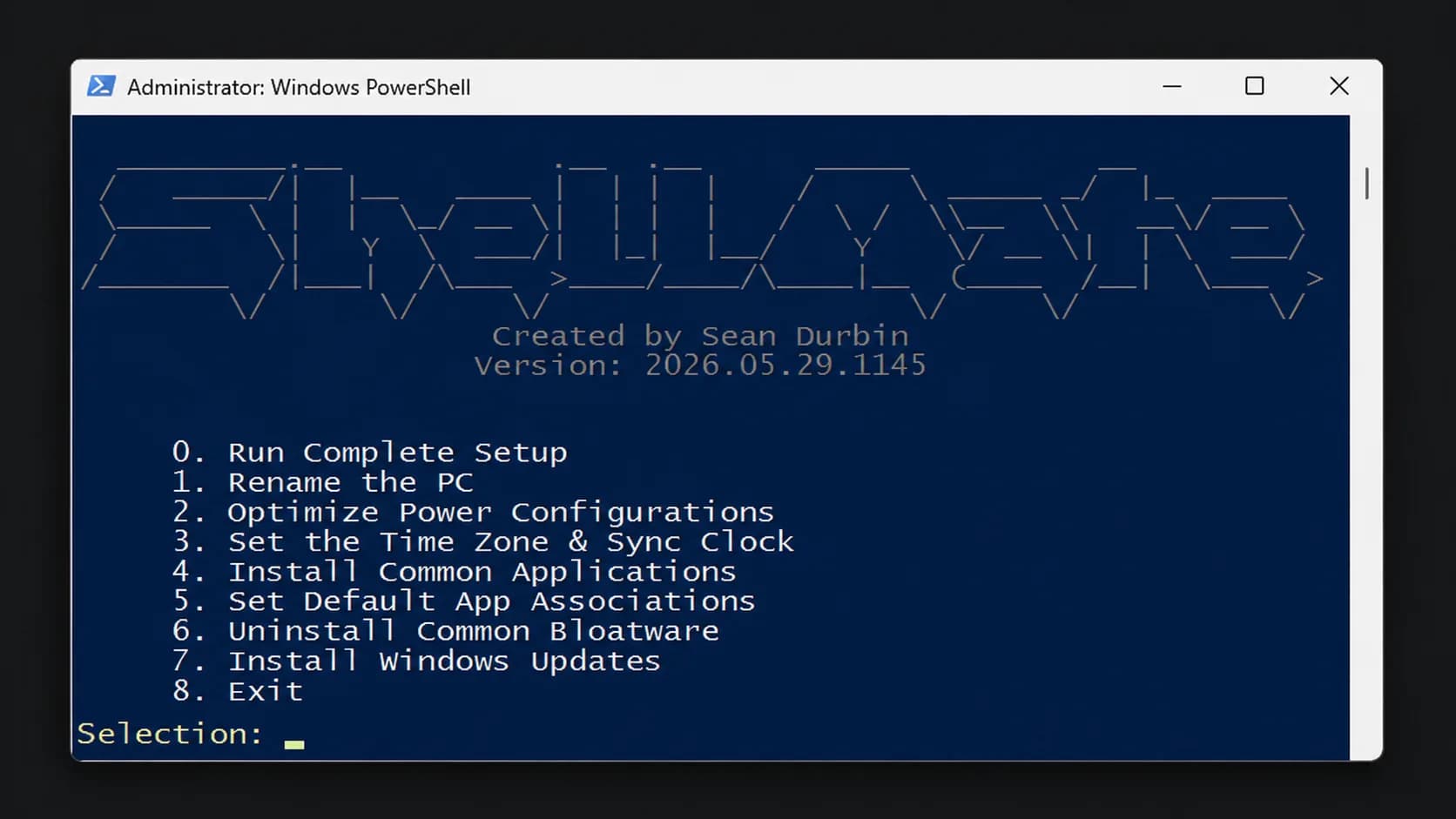
The main menu exposes each operation numerically:
0. Run Complete Setup
1. Rename the PC
2. Optimize Power Configurations
3. Set the Time Zone & Sync Clock
4. Install Common Applications
5. Set Default App Associations
6. Uninstall Common Bloatware
7. Install Windows Updates
8. Exit
Selecting an individual function does not immediately execute it. ShellMate first explains what the operation will change and asks the technician to confirm.
Common execution logic is also wrapped in helper functions such as Invoke-Command, allowing errors from individual Windows operations to be surfaced without immediately terminating the entire interface.
function Invoke-Command {
    param (
        [string]$description,
        [scriptblock]$command
    )

    try {
        & $command
    }
    catch {
        Write-Host "$description - Failed: $_" -ForegroundColor Red
    }
}
The result is still a PowerShell script, but it behaves more like a small purpose-built administration tool: it validates its environment, records execution logs, exposes reusable operations through a consistent interface, handles multiple Windows management mechanisms, responds to common failure states, and orchestrates those components into a repeatable workstation provisioning workflow.